Overview
Flight Memory Exporter is a tool I built to pull your logged flight history from FlightMemory.com and save it as a ready-to-use .xlsx file.
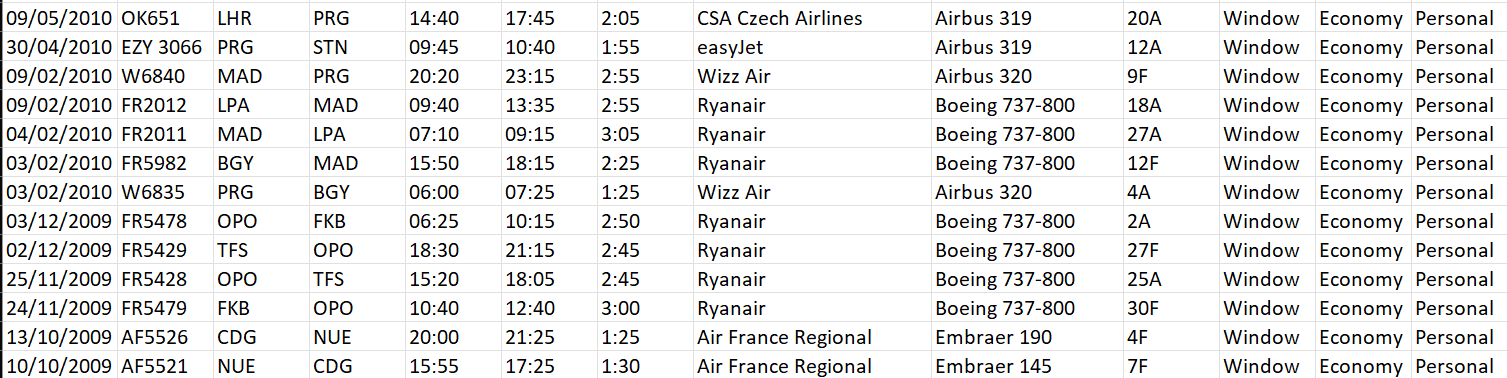
Since FlightMemory.com doesn't offer a public API, the tool relies on web scraping to pull the data straight from the site. It was originally meant to produce a file importable into MyFlightradar24, but the airport IDs that format requires aren't exposed on FlightMemory.com — so the export is best suited for personal record-keeping rather than re-importing elsewhere.
Code construction
The tool is built around a few key libraries:
- Selenium — drives Chrome browser to log in and page through the flight history
- chromedriver-autoinstaller — installs and manages the matching ChromeDriver automatically
- BeautifulSoup4 — parses the saved HTML pages to pull flight data out of the table
- Openpyxl — writes the parsed data into an Excel workbook
- Tkinter — provides the simple desktop GUI
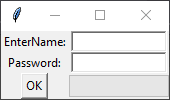
First, a small GUI is built with Tkinter to collect the user's FlightMemory credentials and show progress.
root = tkinter.Tk()
root.wm_title('FlightMemoryExporter')

#UsernameInput
tkinter.Label(root, text='Username:').grid(row = 0, column = 0)
eUsername = tkinter.Entry(root, width=15, borderwidth=2)
eUsername.grid(row = 0, column = 1)
#PasswordInput
tkinter.Label(root, text='Password:').grid(row = 1, column=0)
ePassword = tkinter.Entry(root, width=15, borderwidth=2, show='*')
ePassword.grid(row = 1, column = 1)
ePassword.bind('', lambda event: OK())  # Bind Enter key to OK function
#progressbar
pb = ttk.Progressbar(orient='horizontal', length=100, mode='determinate')
pb.grid(row = 3, column = 1)
directory = './'
#ConfirmButton
tkinter.Button(root, text="OK",  command=lambda : OK()).grid(row=3, column=0)
Once the user submits their credentials, chromedriver is installed automatically and Selenium logs into FlightMemory by locating the login fields via their HTML name attributes.
chromedriver_autoinstaller.install()
print('chromedriver installed')
driver = webdriver.Chrome()
#OpenLoginPage
LOGIN_PAGE = "https://www.flightmemory.com/"

driver.get(LOGIN_PAGE)
wait = WebDriverWait(driver, 5)
#EnterName
wait.until(expected_conditions.element_to_be_clickable((By.NAME, "username"))).send_keys(account)
print('enteredName')
#EnterPassword
wait.until(expected_conditions.element_to_be_clickable((By.NAME, "passwort"))).send_keys(password)
print('enteredPassword')
#SignIn
wait.until(expected_conditions.element_to_be_clickable((By.XPATH, ".//input[@value='SignIn' and @type='submit']"))).click()
print("SignedIn")
Once logged in, the tool navigates to the flight data page and saves every page of results, clicking the "next" button until it disappears — which signals that the last page has been reached.
while True:
        try:
            WebDriverWait(driver, 10).until(
                expected_conditions.element_to_be_clickable((By.XPATH, "//img[contains(@src,'/images/next.gif')]"))).click()
            pages.append(driver.execute_script("return document.documentElement.outerHTML"))
        except TimeoutException:
            print(f"Pages Found:{int(len(pages))}")
            break
With every page saved, BeautifulSoup parses each one's table rows, pulling each flight's details out by their column (<td>) position.
 for page in pages:
        # find table with BS
        data = BeautifulSoup(page, 'html.parser')
        container = data.select_one('.container')
        tablebody = container.find_all('tbody')[2]
        trs = tablebody.find_all('tr', recursive=False)
        print(page)

        # loop through each line
        for idx, tr in enumerate(trs):
            idx += lastidx
            idx += 1

            if idx != lastidx + 1:
                # get info
                flight_number = tr.find_all('td')[0]
                date_dep_arr = tr.find_all('td')[1]
                Departure = tr.find_all('td')[2]
                Arrival = tr.find_all('td')[4]
                Distance = tr.find_all('td')[6]
                FlightTime = tr.find_all('td')[8]
                Airline_Flightinfo = tr.find_all('td')[10]
                Airplane = tr.find_all('td')[11]
                Seat = tr.find_all('td')[12]
                # edit time formating
                # '-'.join([date_dep_arr[i:i+10] for i in range(0, len(date_dep_arr), 3)])
                # addInfoToSheetMyFlightRadar
                date = date_dep_arr.get_text()[0:10]
                date = date.replace('.', '/')
                date_formatted = date[6:]+"/"+date[3:5] +"/"+date[:2]
                sheet.cell(row=idx, column=1).value = date_formatted
                sheet.cell(row=idx, column=2).value = getinfo(Airline_Flightinfo, 1)
                sheet.cell(row=idx, column=3).value = Departure.get_text()
                sheet.cell(row=idx, column=4).value = Arrival.get_text()
                sheet.cell(row=idx, column=5).value = date_dep_arr.get_text()[10:15]
                sheet.cell(row=idx, column=6).value = date_dep_arr.get_text()[15:20]
                sheet.cell(row=idx, column=7).value = FlightTime.get_text()
                sheet.cell(row=idx, column=8).value = getinfo(Airline_Flightinfo, 0)
                sheet.cell(row=idx, column=9).value = getinfo(Airplane, 0)
                sheet.cell(row=idx, column=10).value = getinfo(Airplane, 1)
                sheet.cell(row=idx, column=11).value = Seat.get_text().split('/')[0]
                sheet.cell(row=idx, column=12).value = getSeatInfo(1, Seat)
                sheet.cell(row=idx, column=13).value = getSeatInfo(2, Seat)
                sheet.cell(row=idx, column=14).value = getSeatInfo(3, Seat)
Finally, the parsed data is written into an Excel workbook with Openpyxl and saved to the location the user chose.
The user can then open the generated Excel file to view and view their flight data.